# Basic manipulation

In ShapesXR, there are two interaction modes: **Direct and Ray**.

{% hint style="info" %}
There’s one simple rule: **use the trigger button to select objects and the grip button to grab them**.
{% endhint %}

### Direct mode

Move close to an object and press the trigger button to select it, or hold the grip button and pull to grab the object.

<figure><img src="https://1564817110-files.gitbook.io/~/files/v0/b/gitbook-x-prod.appspot.com/o/spaces%2FV5IFh3rk5kqfCwJPPYhE%2Fuploads%2FnQcTS6rm4R7G0D2gkfp7%2F008.gif?alt=media&#x26;token=3dc33a45-4608-4aec-99b8-f42a40f345e9" alt=""><figcaption></figcaption></figure>

You can easily select or grab small or flat objects using precise selection. Move close to the object until a dot pointer appears, then use the trigger button to select it or the grip button to grab it.

<figure><img src="https://1564817110-files.gitbook.io/~/files/v0/b/gitbook-x-prod.appspot.com/o/spaces%2FV5IFh3rk5kqfCwJPPYhE%2Fuploads%2FJqpWVk8ghM3E8sMT7Jcn%2F009.gif?alt=media&#x26;token=05e7db01-5f68-4ba6-b6c5-f71dcf0b5d73" alt=""><figcaption></figcaption></figure>

Pull the controller stick to the right to increase the size of the selection sphere, allowing you to select or grab multiple objects at once.

<figure><img src="https://1564817110-files.gitbook.io/~/files/v0/b/gitbook-x-prod.appspot.com/o/spaces%2FV5IFh3rk5kqfCwJPPYhE%2Fuploads%2FloVJt8Ntp4nq6Lqp8ZOv%2F010.gif?alt=media&#x26;token=d2023bd3-2d2e-4937-a4e3-7f54716fd0bc" alt=""><figcaption></figcaption></figure>

You can select multiple objects by holding the trigger button and touching them one by one, or by drawing a line across them.

<figure><img src="https://1564817110-files.gitbook.io/~/files/v0/b/gitbook-x-prod.appspot.com/o/spaces%2FV5IFh3rk5kqfCwJPPYhE%2Fuploads%2Fjfvc3ciOXjXlZ5D7ySNT%2F011.gif?alt=media&#x26;token=51b8dc00-99ca-47b3-93f7-a2a95fe79cb4" alt=""><figcaption></figcaption></figure>

Additionally, holding the non-dominant trigger button lets you add or remove objects from the selection one by one.

<figure><img src="https://1564817110-files.gitbook.io/~/files/v0/b/gitbook-x-prod.appspot.com/o/spaces%2FV5IFh3rk5kqfCwJPPYhE%2Fuploads%2Foz9dL8nFR1yMKjAV3OYm%2F012.gif?alt=media&#x26;token=fca6bc15-4a6e-4aa9-8795-20602ce18bb2" alt=""><figcaption></figcaption></figure>

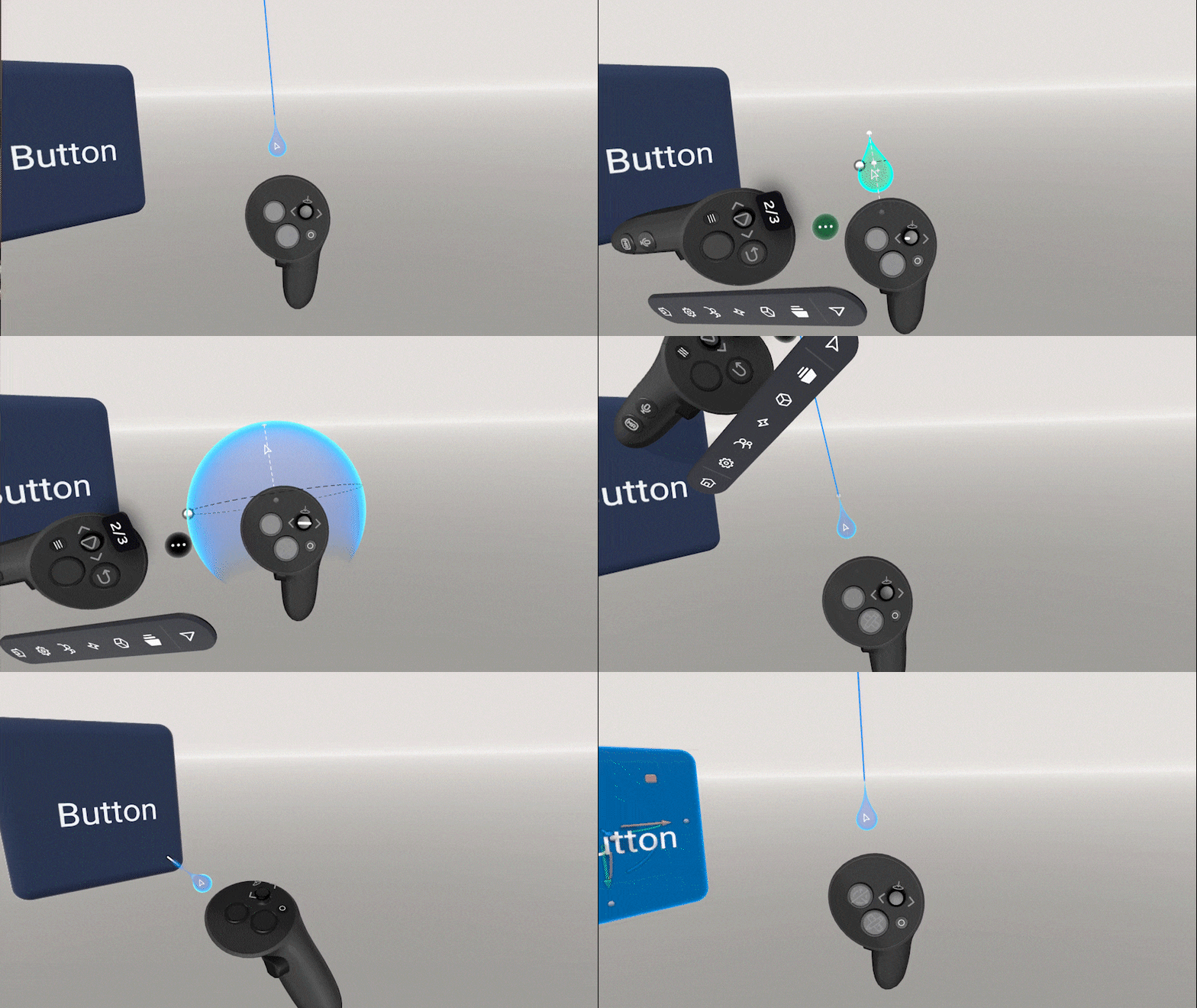
### Switching between interaction modes

Pull the controller stick fully to the left to activate Ray interaction mode.

<figure><img src="https://1564817110-files.gitbook.io/~/files/v0/b/gitbook-x-prod.appspot.com/o/spaces%2FV5IFh3rk5kqfCwJPPYhE%2Fuploads%2FApI45rTULpY36MKtFkx9%2F013.gif?alt=media&#x26;token=bc64cf0a-2a63-455d-9d92-20795ff76647" alt=""><figcaption></figcaption></figure>

Or you can use your non-dominant controller to adjust the selection mode on the controller.

<figure><img src="https://1564817110-files.gitbook.io/~/files/v0/b/gitbook-x-prod.appspot.com/o/spaces%2FV5IFh3rk5kqfCwJPPYhE%2Fuploads%2FBVjJAIeBULTUZ97gmz2d%2F015.gif?alt=media&#x26;token=f0cc97e6-bff9-4e1d-b7eb-fdcf27b15dbf" alt=""><figcaption></figcaption></figure>

### Ray mode

Ray mode lets you select or grab objects from a distance.&#x20;

Hover over an object, then use the trigger button to select it or hold the grip button to grab it.

<figure><img src="https://1564817110-files.gitbook.io/~/files/v0/b/gitbook-x-prod.appspot.com/o/spaces%2FV5IFh3rk5kqfCwJPPYhE%2Fuploads%2Fzl2X4Khf3s46Tz22vdgo%2F016.gif?alt=media&#x26;token=dfdc1124-e727-4615-af5b-d7c7bc0f7fac" alt=""><figcaption></figcaption></figure>

You can move objects closer or farther by pushing the stick forward or pulling it back.

Hold the trigger button and touch objects with the ray to select multiple objects.

While selecting, holding the non-dominant trigger button lets you add or remove objects from the selection one by one.

<figure><img src="https://1564817110-files.gitbook.io/~/files/v0/b/gitbook-x-prod.appspot.com/o/spaces%2FV5IFh3rk5kqfCwJPPYhE%2Fuploads%2FUlwxRLyPappEMzxrlaNY%2F018.gif?alt=media&#x26;token=edbd489a-8209-437f-b5dd-010bbcd9474a" alt=""><figcaption></figcaption></figure>

### Deleting&#x20;

To delete an object, grab it in any interaction mode and throw it away.

<figure><img src="https://1564817110-files.gitbook.io/~/files/v0/b/gitbook-x-prod.appspot.com/o/spaces%2FV5IFh3rk5kqfCwJPPYhE%2Fuploads%2FU4Rpt5LpMw5NBZkw4Xvy%2F019.gif?alt=media&#x26;token=fdc0946a-921e-4baf-87bf-beadf2fae955" alt=""><figcaption></figcaption></figure>

You can also delete objects via the Object Inspector - read about it [here](https://learn.shapesxr.com/object-inspector).

<figure><img src="https://1564817110-files.gitbook.io/~/files/v0/b/gitbook-x-prod.appspot.com/o/spaces%2FV5IFh3rk5kqfCwJPPYhE%2Fuploads%2FWZKoeaF4eNosYV9yXEQV%2F020.gif?alt=media&#x26;token=d7317b98-1df2-48e1-8cbc-ce8a94272e3b" alt=""><figcaption></figcaption></figure>

### Duplication

While holding an object, press the trigger button to duplicate it.

To duplicate an object without moving the original, hover over it, press the non-dominant trigger button, and pull the duplicate using the grip button.

<figure><img src="https://1564817110-files.gitbook.io/~/files/v0/b/gitbook-x-prod.appspot.com/o/spaces%2FV5IFh3rk5kqfCwJPPYhE%2Fuploads%2FaRfcQCPmbLok84QAQYeh%2F022.gif?alt=media&#x26;token=27fcc9c4-e189-447e-a6ac-6391b4a1b966" alt=""><figcaption></figcaption></figure>

You can duplicate and copy objects via the Object Inspector - read about it [here](https://learn.shapesxr.com/object-inspector).

### Scale

In any interaction mode, you can scale an object by shifting the stick to the right or the left.

<figure><img src="https://1564817110-files.gitbook.io/~/files/v0/b/gitbook-x-prod.appspot.com/o/spaces%2FV5IFh3rk5kqfCwJPPYhE%2Fuploads%2FcTJqa5KafN33affNEroC%2F023.gif?alt=media&#x26;token=66310be3-084b-4a33-a2dc-6e5a60beee50" alt=""><figcaption></figcaption></figure>

You can change object size and position via the Object Inspector - read about it [here](https://learn.shapesxr.com/object-inspector).&#x20;

Additionally, you can use [Gizmo](https://learn.shapesxr.com/objects-manipulation/gizmo) for this purpose.&#x20;